Lesson 10: Embedding Media (Videos, Maps, and Iframes)
Sometimes, you don’t want to write everything out. Sometimes, a video tutorial or an interactive map is exactly what a “learner” needs. In HTML, we use Embed tags and Iframes to bring outside content into our site.
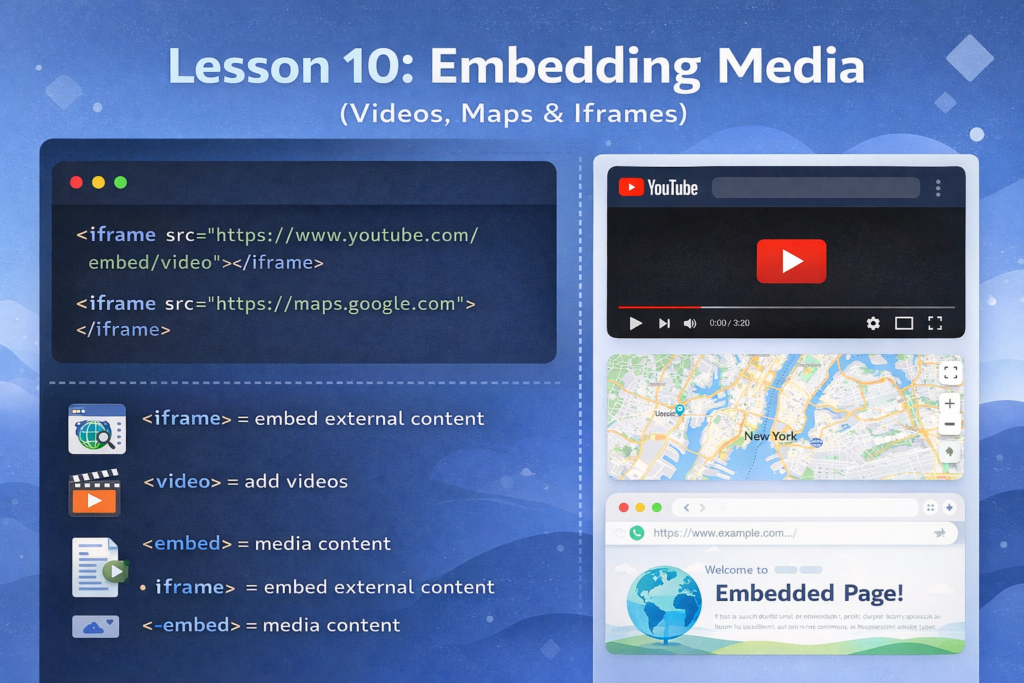
1. The Video Tag (<video>)
If you have your own video file (like a .mp4), you can host it yourself.
The Code:
<video width="640" height="360" controls>
  <source src="intro-to-php.mp4" type="video/mp4">
  Your browser does not support the video tag.
</video>controls: This is essential! It adds the Play, Pause, and Volume buttons.
Fallback Text: The text “Your browser does…” only shows up if the user is using a very ancient browser.
2. YouTube & Iframes (<iframe>)
Most developers don’t host their own videos because they are huge files. Instead, we use YouTube. To do this, we use an Iframe (an “Inline Frame”), which is essentially a window that looks at another website.
The Code:
<iframe width="560" height="315"
    src="https://www.youtube.com/embed/your-video-id"
    title="YouTube video player"
    frameborder="0"
    allowfullscreen>
</iframe>3. Embedding Google Maps
Want to show where your “Coding Learners” headquarters is (even if it’s just your home office)? Google Maps provides an <iframe> embed code.
The Code:
<iframe src="https://www.google.com/maps/embed?..." width="400" height="300" style="border:0;" allowfullscreen="" loading="lazy"></iframe>4. The <audio> Tag
If you decide to start a “Coding Learners Podcast,” you’ll use the audio tag. It works exactly like the video tag.
The Code:
<audio controls>
  <source src="podcast-episode-1.mp3" type="audio/mpeg">
</audio>🛠️ Practice Task: Media Integration
- Go to YouTube and find a basic “Introduction to HTML” video.
- Click Share > Embed and copy that
<iframe>code. - Paste it into your
index.htmlunder a new<h2>called “Video Tutorial.” - Save and refresh. You now have a multimedia site!

v4vozn
l8cbve
de26to
This article does something rare and valuable by making the reader feel smarter after reading it without ever making them feel talked down to, a delicate balance perfectly achieved here.
Check it peeps! Finally found a new spot where the action is hot! You can get payouts real fast. The spot is Pearl123bbr: pearl123bbr
Truly one of the most useful articles on this topic available online right now, the combination of expertise and clear communication makes it an invaluable resource for anyone interested.
One of those rare articles where every single section feels necessary and contributes to the whole, nothing feels rushed or out of place and the conclusion ties it all together.
This post was very well researched, showing genuine expertise while remaining accessible to all readers which is something I rarely say about articles I find online.
The content here was surprisingly detailed, anticipating the reader’s questions and answering them proactively so I will be keeping an eye out for future posts from this author.